Photo: Wikimedia Commons Your phone tells you storage is full right when you need to snap a quick photo. It happens to everyone at the worst time. You do not have to delete your favorite memories or throw your phone away to fix it. You can clear gigabytes of space in less than ten minutes by clearing hidden app junk, moving large files, and changing a few settings. Most of that taken space comes from invisible trash your apps build up every single day. Find Out Which Apps Are Stealing Your Space Before you start erasing things, look at what is taking up room. Both iPhones and Android phones have a simple map that shows you the space hogs. You might be surprised to see a basic app taking up 15 gigabytes of room. On an iPhone, open your Settings app. Tap General, then tap iPhone Storage. Wait a few seconds for the bar to fill up. You will see a list of all your apps, ranked from the biggest space hog to the smallest. On an Android phone, open Settings and tap Storage. If you u...

Your phone has hidden features that can change how you use it every single day. Most people only use about ten percent of what their device can really do. You might be surprised to find a secret button on the back of your iPhone or a way to keep your screen awake on Android just by looking at it.
The short answer is that both Apple and Google hide "Power User" tools deep in the Settings menu to keep the main screens clean. To find them, you usually need to go to Settings, then Accessibility or Advanced Features. These tools help you take better photos, save time typing, and keep your private data safe from prying eyes.
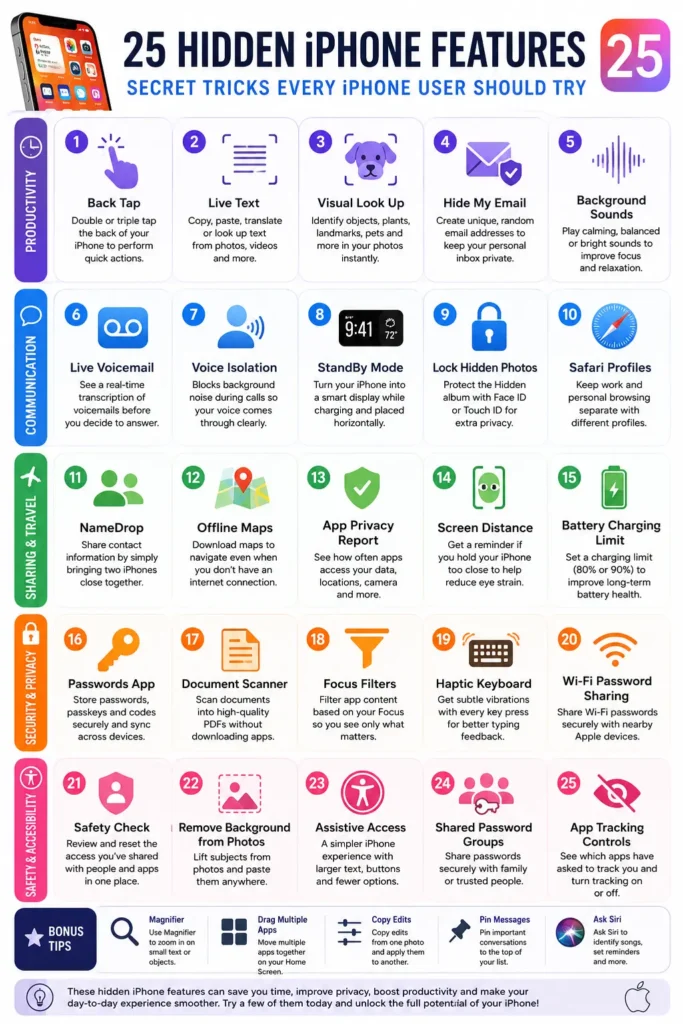
The secret button on the back of your iPhone
Many iPhone users do not realize the Apple logo on the back of their phone can act as a physical button. This feature is called Back Tap. It uses the sensors inside the phone to feel your finger tapping the glass. I set mine to take a screenshot because pressing two side buttons at once is always a struggle for me.
To turn this on, go to Settings and tap Accessibility. Next, tap on Touch and scroll all the way to the bottom to find Back Tap. You can choose Double Tap or Triple Tap. I suggest setting Double Tap to something you do often, like opening the camera or turning on the flashlight. It feels like magic when you tap the back of the case and the light pops on instantly.
This works even if you have a thick protective case on your Smartphone. My friend uses a heavy duty plastic case and his Back Tap works every single time. It is a great way to use your phone with one hand when you are carrying groceries or a coffee. Just be careful not to set it to something loud if you tend to fidget with your phone in meetings.
How to keep your screen on while you are reading
It is very annoying when you are reading a long recipe or a news article and the screen goes black. You have to touch the glass every ten seconds just to keep it awake. Android phones have a hidden fix for this called Smart Stay or Screen Attention. It uses the front camera to see if your eyes are looking at the glass.
On a Samsung phone, go to Settings and then Advanced Features. Tap on Motions and Gestures and look for Keep screen on while viewing. For Google Pixel users, go to Settings, then Display, and look for Screen Attention. Once you flip this switch, the phone will stay bright as long as your face is toward the screen. It saves so much frustration when you are following a long DIY guide.
I found this helpful when I was trying to fix a leaky sink last week. My hands were covered in water and I could not touch the screen to wake it up. Because I had this feature on, the instructions stayed clear and bright the whole time. It is a small change that makes the phone feel much smarter.
Scientific secrets in your calculator app
Everyone uses the basic calculator to split a dinner bill or check their spending. But there is a much more powerful tool hiding right inside that same app. If you own an iPhone, just turn your phone sideways to the landscape view. The simple calculator suddenly turns into a full scientific calculator with square roots and complex math bars.
Android users usually have a similar trick, but sometimes it is hidden under a small icon that looks like a ruler or a square root symbol. In the Google Calculator app, you can pull down from the top of the keypad to show more options. This is perfect for students or anyone doing home projects that need more than just plus and minus signs.
There is also a hidden history feature in most phone calculators. If you swipe down on the main number area, you can see all the math you did earlier that day. This saved me when I forgot the total of three different hardware store receipts. I did not have to re-add everything because the numbers were still there waiting for me.
Identify any song without downloading new apps
We have all been in a car or a shop when a great song starts playing and we do not know the name. You do not need to download extra apps that take up space to find out what it is. Both major phone types have this built right into the control panels now. It is faster and easier than typing lyrics into a search bar.
On an iPhone, go to Settings and then Control Center. Find the tool called Music Recognition and tap the green plus sign. Now, you can just swipe down from the top right of your screen and tap the Shazam icon whenever music is playing. It even works if you are wearing headphones and watching a video on social media.
Android users can use the "Now Playing" feature. Go to Settings, tap Sound and Vibration, and then Now Playing. If you turn on "Identify songs playing nearby," your phone will show the artist and song title right on your lock screen. It is like having a music expert sitting in your pocket all day long. You can find more tips on managing your device at tech tips for everyday users.
Write faster with custom text shortcuts
Do you get tired of typing your long email address or your home street name over and over? You can create short "codes" that turn into full sentences automatically. This is one of the How to Back Up Your Photos So You Never Lose a Memory style tips that saves hours of time over a year. I use "@@" as a shortcut for my full email address.
On an iPhone, go to Settings, General, Keyboard, and then Text Replacement. Tap the plus sign. In the Phrase box, type your long email. In the Shortcut box, type "@@". Now, whenever you type those two symbols, your phone will suggest the full email. You just tap the space bar to accept it. It is perfect for long phrases like "On my way!" or "I will call you back soon."
Android has this too under Settings, Languages and Input, and Personal Dictionary. I set up a shortcut for my home address so I can send it to friends in a second. Instead of typing the whole street and zip code, I just type "haddr" and it fills it all in. It makes you feel like a pro and keeps your thumbs from getting tired.
Hide your private photos in a locked folder
Sometimes you have photos of a surprise gift, a medical form, or a private joke that you do not want others to see. You might hand your phone to a friend to show them a vacation photo, and you worry they might swipe too far. Both Apple and Google have added "Locked" folders that require a passcode or a face scan to open.
On an iPhone, open the Photos app and find a photo you want to hide. Tap the three dots in the corner and choose Hide. That photo moves to a folder called Hidden. The best part is that you can go to Settings, then Photos, and turn on "Use Face ID." Now, no one can see that folder without your face being right in front of the camera.
Google Photos has a "Locked Folder" that works the same way. Open the app, go to Library, then Utilities, and set up the Locked Folder. Anything you move there will stay off your main grid and will not be backed up to the cloud. This is a big part of Computer security for your personal life. It gives you peace of mind when your kids are playing games on your phone.
The secret level tool for hanging pictures
You do not need to go to the garage to find a level when you want to hang a picture frame. Your phone has a sensor called a gyroscope that knows exactly how the device is tilted. Most people do not know this tool exists because it is tucked away inside another app. It is very accurate and works for both flat surfaces and walls.
On an iPhone, open the Measure app. It is a standard app that comes on every phone. Tap the word "Level" on the bottom right. You can lay the phone flat to see if a table is even, or hold it on its side against a picture frame. The screen turns green when you hit zero degrees. It is a lifesaver when you are decorating a room alone.
Android users can often find this by simply typing "bubble level" into the Google search bar on their phone. A digital level will appear right in the search results. I used this last month to level my washing machine when it started making a loud banging noise. It showed me exactly which corner was too low without me needing to buy a real tool from the store.
Stop apps from tracking your every move
Your phone often knows exactly where you are, even when you are not using a map. This drains your battery and can be a bit creepy. You can actually see a list of every place your phone thinks you visit often. Turning this off can help your battery last longer and keep your life more private.
On an iPhone, go to Settings, then Privacy and Security, then Location Services. Scroll way down to System Services and then Significant Locations. You might be shocked to see a list of your favorite shops and your home address. You can clear this history and turn it off completely. It is a good way to take control of your own data.
Android phones have a "Location History" setting inside your Google Account settings. You can set it to auto-delete every three months. This way, the phone still helps you with traffic and local weather, but it does not keep a permanent map of your life for years. I check this setting once a year just to make sure nothing has changed without me knowing.
Did you know about the secret button on the back of your phone before today? Try setting up one of these shortcuts tonight and see how much faster your daily tasks become. Which feature are you going to turn on first?
Comments
Post a Comment